S-Etukortti for Android phones: setup
Updated 10 months ago
Enable the contactless NFC S-Etukortti in S-mobiili and get the same co-op member benefits on your phone as with your physical S-Etukortti card.
How to set up S-Etukortti in S-mobiili
1. Sign in
Sign in to S-mobiili and open your S-Etukortti from the Me section.
2. Activate
Get your S-Etukortti
3. Check
Check your Android phone settings (Android 9.0 or newer):
NFC is turned on
Default payment app is set to e.g. Google Pay (Note! Not S-mobiili)
"Allow open app to override default payment app" is enabled (wording varies by phone model).
How do I use S-mobiili's S-Etukortti?
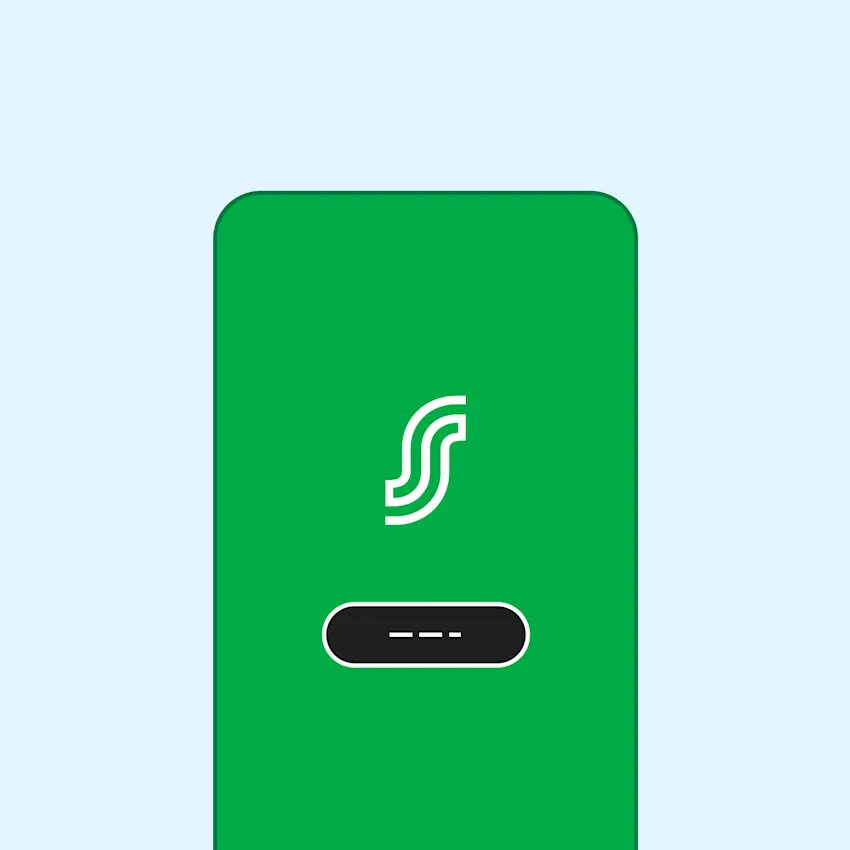
Open S-mobiili at checkout. You don't need to sign in. A prompt appears at the bottom of the screen telling you that S-Etukortti is active.
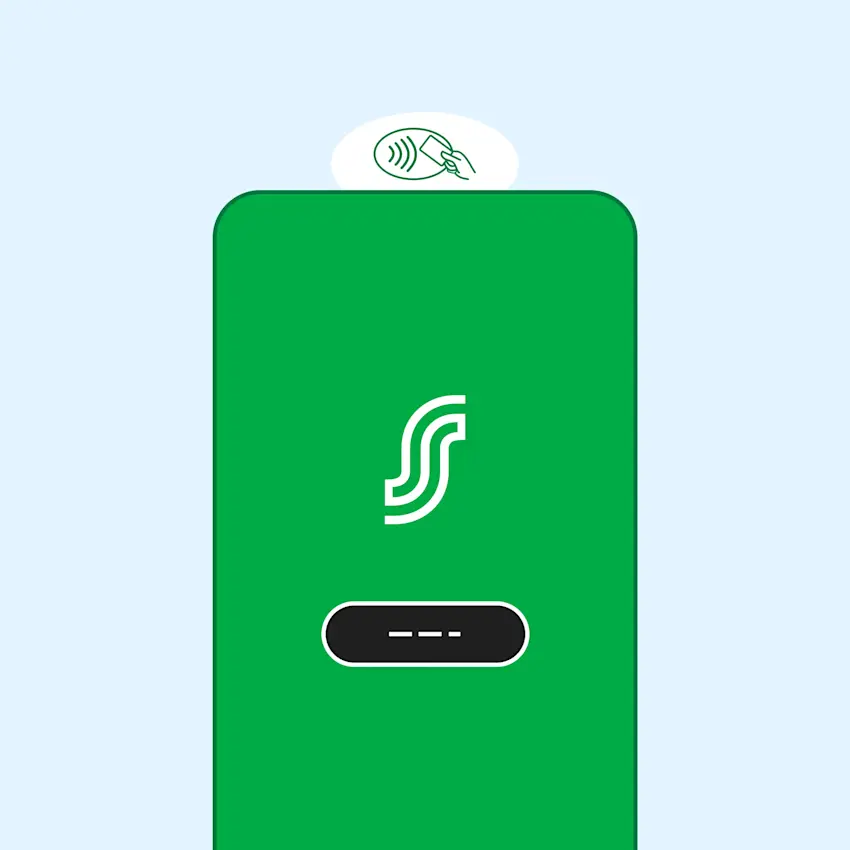
Hold your phone near the payment terminal's contactless reader to register Bonus. On most payment terminals, the contactless reader is on the left side (same as for payment cards).
When Bonus is registered successfully, the payment terminal shows "Bonus ok" and S-mobiili displays a notification "Bonus kirjattu" (Bonus registered).
Close S-mobiili after this and pay with your preferred payment method. You can also use the "Avaa maksusovellus" (Open payment app) link to switch to your payment app (for example, Google Pay).
What kind of phone do I need to use S-Etukortti in S-mobiili?
You need a smartphone with:
At least Android operating system version 9.0
NFC contactless function (the same one used for contactless payments)
NFC function must be turned on for S-Etukortti contactless reading at payment terminals to work
Note: Certain phone models don't allow overriding the default payment app, which means using S-Etukortti and a payment app together won't work. This affects phones such as:
OnePlus
Huawei
Cubot
Doogee
Oukitel
Blackview
Ulefone
What does NFC mean and how does it relate to S-mobiili's S-Etukortti?
NFC stands for near field communication. NFC contactless technology is used for reading payment cards, and it lets you pay for purchases contactlessly.
You also need NFC contactless reading when you:
Register Bonus from your purchases with S-mobiili's contactless S-Etukortti
Pay for purchases with your smartphone's payment app, for example Google Pay
When using NFC contactless reading
Hold your phone calmly near the payment terminal's contactless reader.
With S-mobiili's S-Etukortti
If you've activated S-mobiili's S-Etukortti, you need to give S-mobiili permission in your phone's settings to override the default payment app, for example Google Pay. This way, NFC is first used to register Bonus, and the payment terminal doesn't immediately proceed to charge the payment.
Using a payment app
Even though you've given S-mobiili permission to override your phone's default payment app, it doesn't prevent contactless payments with your phone's default payment app.
You can pay for purchases with a payment card you've added to Google Pay after registering Bonus, once S-mobiili is closed. S-mobiili shows "Bonus kirjattu" (Bonus registered) after registering Bonus, and you can switch to Google Pay from the "Avaa maksusovellus" (Open payment app) link.
When you use the default payment app in stores other than S Group stores and S-mobiili isn't open, you go straight to the payment step.
How can I find out if my phone has NFC contactless function and turn NFC on?
Phone settings vary by phone model. Here's how to find the NFC contactless function settings:
Open Settings
Type NFC in the Search settings field
If NFC isn't found, your phone doesn't support NFC contactless or contactless payments
If NFC is found, turn it on
How should I change my phone's settings so that S-mobiili's contactless S-Etukortti works smoothly with Google Pay?
To register Bonus with S-mobiili before paying, when S-mobiili is active, it needs to be able to override the default payment app. In your phone's settings, select "Pay with open app" as your default payment app setting.
Settings for most Samsung phone models
You can find default payment app settings in two ways:
Option 1:
Open settings
Connections
NFC and contactless payments: if NFC isn't on, turn it on
Contactless payments
Select default payment service: for example, Google Pay
Select "Pay with open app"
Option 2:
Open settings
Bluetooth and device connection
Contactless payments
Select default payment app: for example, Google Pay
Select: "Use default – Except when another payment app is open"