S-Etukortti in Apple Wallet: setup
Updated 10 months ago
Add your S-Etukortti to Apple Wallet from the Profile section in S-mobiili. S-Etukortti and S-Etukortti Visa are separate cards in Wallet, and you need both to earn cashback and use Apple Pay.

How to add S-Etukortti to Apple Wallet
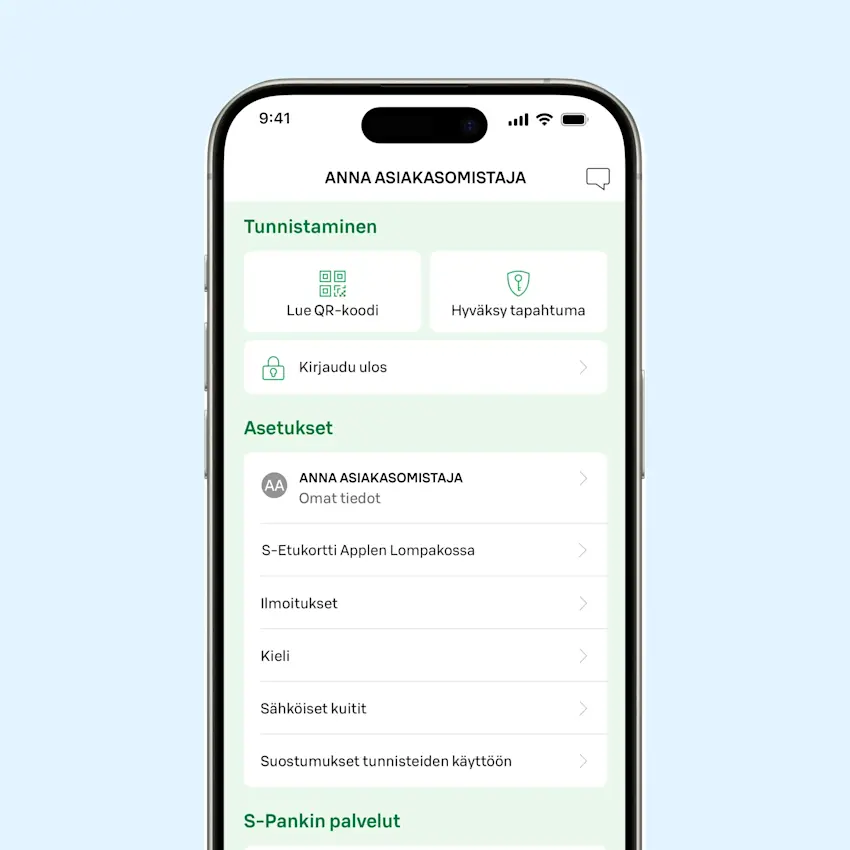
1. Sign in to S-mobiili
Open S-mobiili and go to the Profile section.
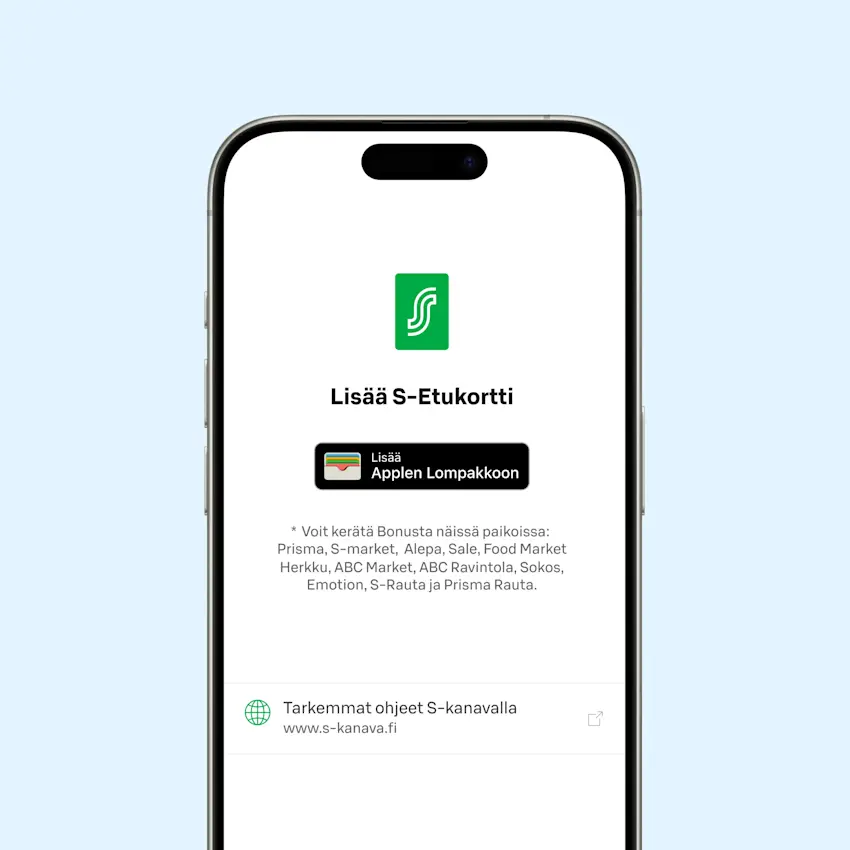
2. Add from Profile
Select adding S-Etukortti to Apple Wallet.
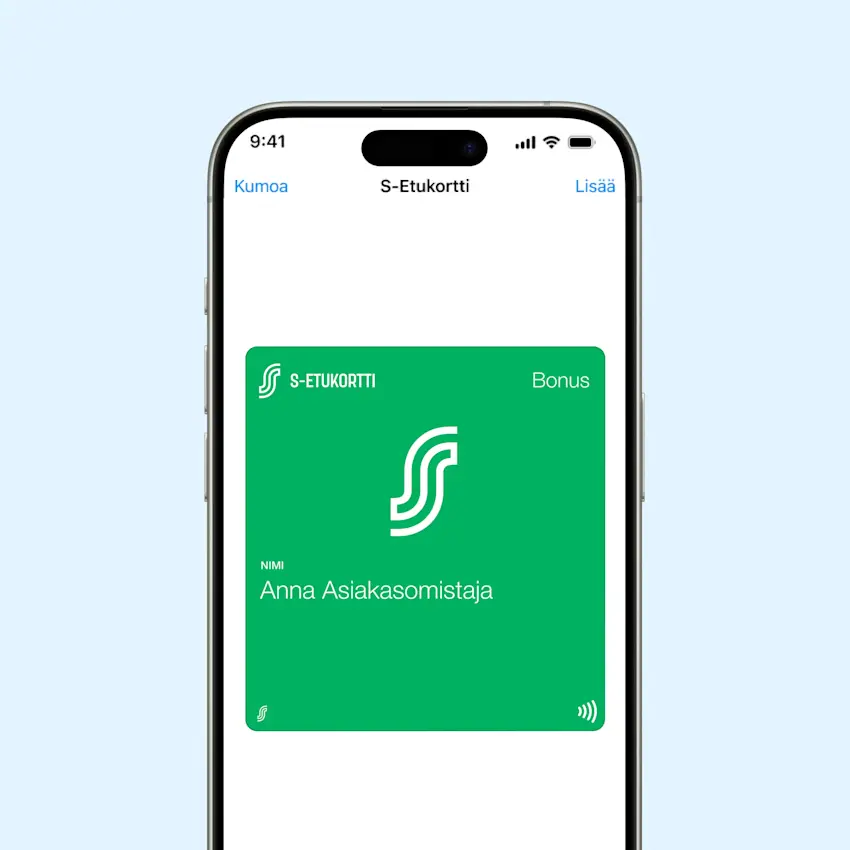
3. Confirm
Tap the "Add" button to confirm. Keep the default card settings.
After this, you can earn Bonus by holding your phone near the payment terminal at checkout – no sign-in or internet connection needed.
I have S-Etukortti Visa, why isn't adding just that to Apple Wallet enough to earn cashback?
In Apple Wallet, payment cards and other cards are separate. Other cards include membership cards and tickets.
That's why you need to add:
S-Etukortti to earn cashback
S-Etukortti Visa as a payment card for Apple Pay payments
If you pay with Apple Pay using only S-Etukortti Visa, you won't earn cashback or other member benefits.
You can add both cards from the Profile section in S-mobiili. S-mobiili offers to add both cards when you add S-Etukortti or S-Etukortti Visa.
Can I use S-Etukortti on Apple Watch?
Yes, you can. You'll also earn cashback and benefits when using Apple Watch.
Here's how:
Add your S-Etukortti to Apple Wallet on your iPhone through S-mobiili
On your phone, go to Settings: Apps Using iCloud / Saved in iCloud (Show All)
Make sure both Watch and Wallet are enabled (On the latest iOS versions, just Wallet is enough)
Sync between your iPhone and Apple Watch is now enabled. You can now earn cashback and other member benefits with Apple Watch.
Note:
Syncing may take a moment. Try restarting your iPhone and Apple Watch if needed
Update your iPhone and Apple Watch to the latest operating systems
Add your S-Etukortti Visa card separately to Apple Watch if you want to pay with it through Apple Watch
If syncing still doesn't work, contact Apple Support
How can a parallel card holder add S-Etukortti to Apple Wallet?
When the cardholder signs in to S-mobiili with their own bank credentials, they can add S-Etukortti to Apple Wallet in the Profile section of S-mobiili.
If setting up S-mobiili doesn't work due to incomplete customer information, for example, contact customer service.
Which devices can I use to add S-Etukortti to Apple Wallet?
You can add S-Etukortti to Apple Wallet on an iPhone with:
iOS 15 or newer operating system
The latest version of S-mobiili
After this, you can also use S-Etukortti on Apple Watch, as long as sync between your iPhone and Apple Watch is enabled.
Note! Even though you can use S-mobiili on an iPad, for example, you can't add S-Etukortti to Apple Wallet on an iPad. iPad doesn't have the Apple Wallet app.
Why do I see multiple S-Etukortti cards in Apple Wallet?
If you have S-Etukortti Visa as a payment card and S-Etukortti as a membership card, everything is fine. They appear separately because Apple Wallet separates payment cards and other cards. You can first earn cashback on your purchases and then pay with S-Etukortti Visa, just like with the physical card.
If you have more than one S-Etukortti Visa or combination card, you can add all of them to Wallet as payment cards separately.