Setting up S-mobiili with other bank credentials
Updated 6 months ago
Step-by-step guide for installing and activating S-mobiili using credentials from a bank other than S-Bank. You can also open S-Bank services during setup.

Download S-mobiili
- Go to your phone's app store (Google Play or App Store).
- Search for "S-mobiili" and download the app.
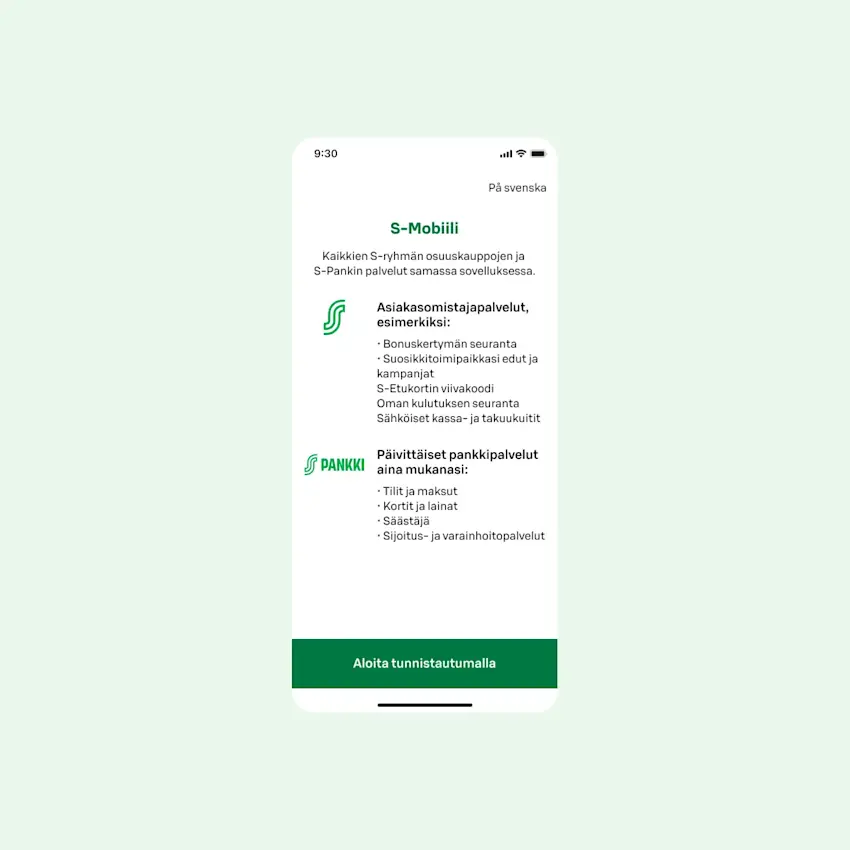
Open the app
- Open S-mobiili on your phone.
- Tap "Start by authenticating".
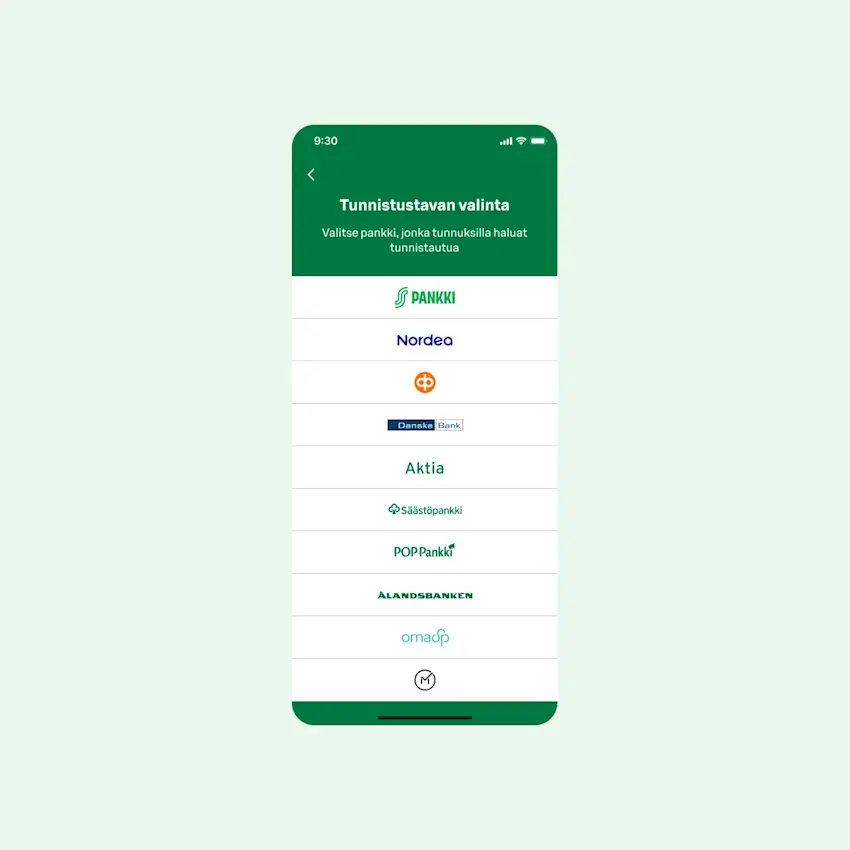
Sign in
Sign in with your online banking credentials.
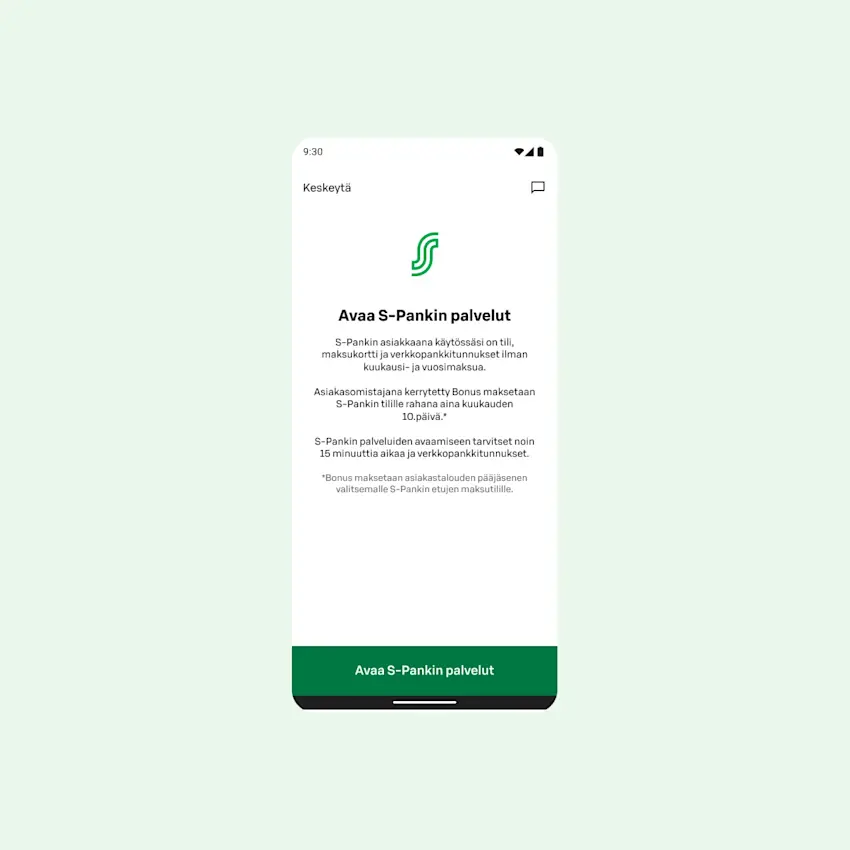
S-mobiili banking services
- Once you've signed in, S-mobiili checks whether you can activate banking features.
- If you don't have an S-Bank account or online banking credentials, you can open S-Bank services by selecting "Open S-Bank services".
- By selecting "Skip", you continue setting up S-mobiili without banking services.
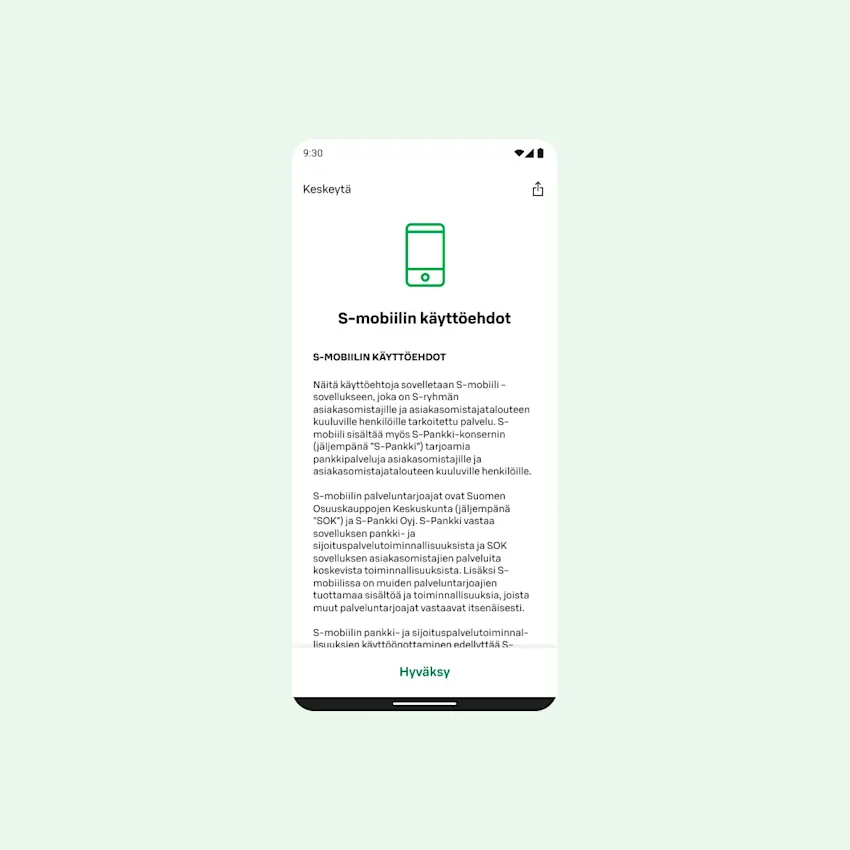
Accept the terms and conditions
- Read the S-mobiili terms and conditions.
- Tap "Accept".
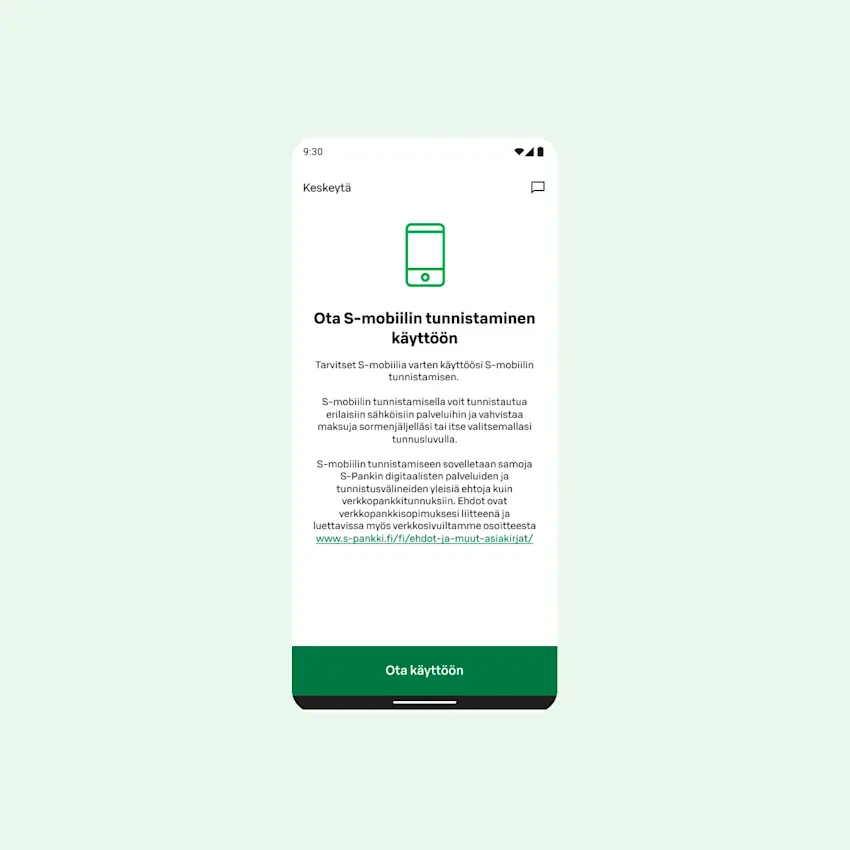
Activate authentication
If you have S-Bank services, or open them when setting up S-mobiili, enable authentication
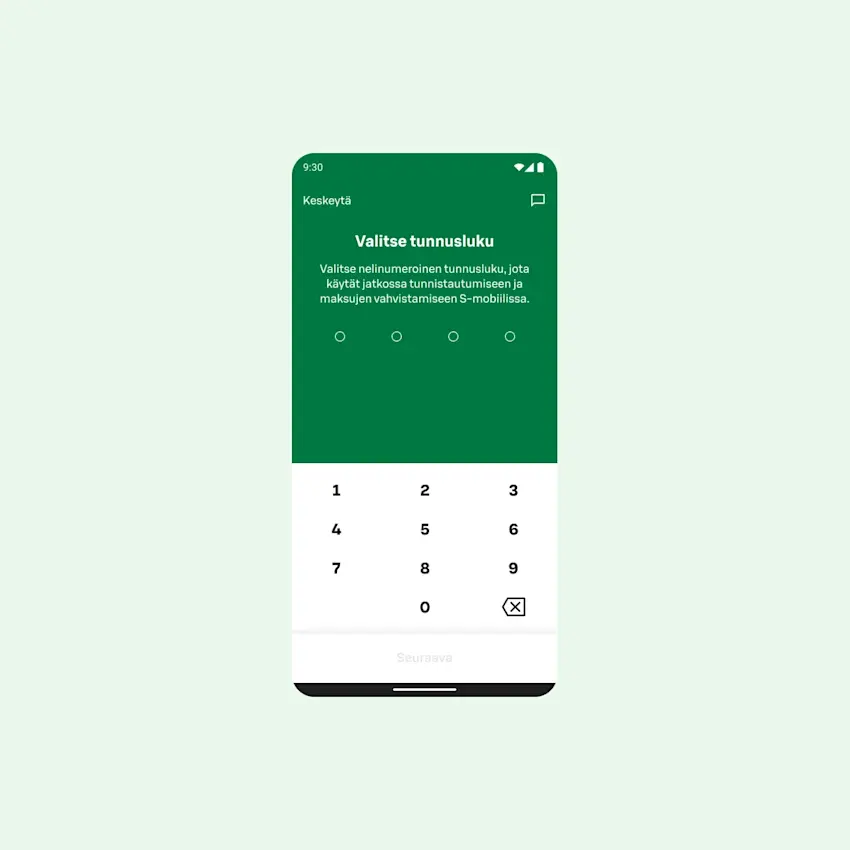
Set your PIN code
- Choose a 4-digit PIN code.
- The PIN must not contain consecutive numbers (like 1234) and must include at least two different digits (like 1256).
- Tap "Next".
- Enter the same PIN code again to confirm.
- Tap "Next".
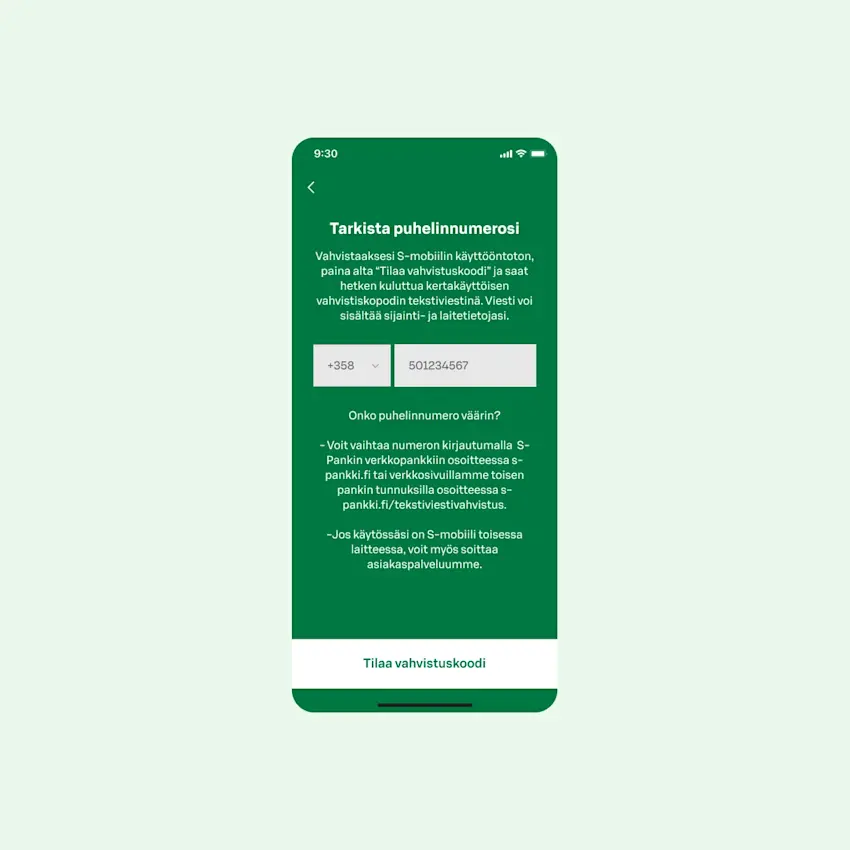
Check and confirm your phone number
- Tap "Request verification code".
- If your phone number is not in your S-Bank customer details, you will be asked to add it in online banking or at the nearest service point.
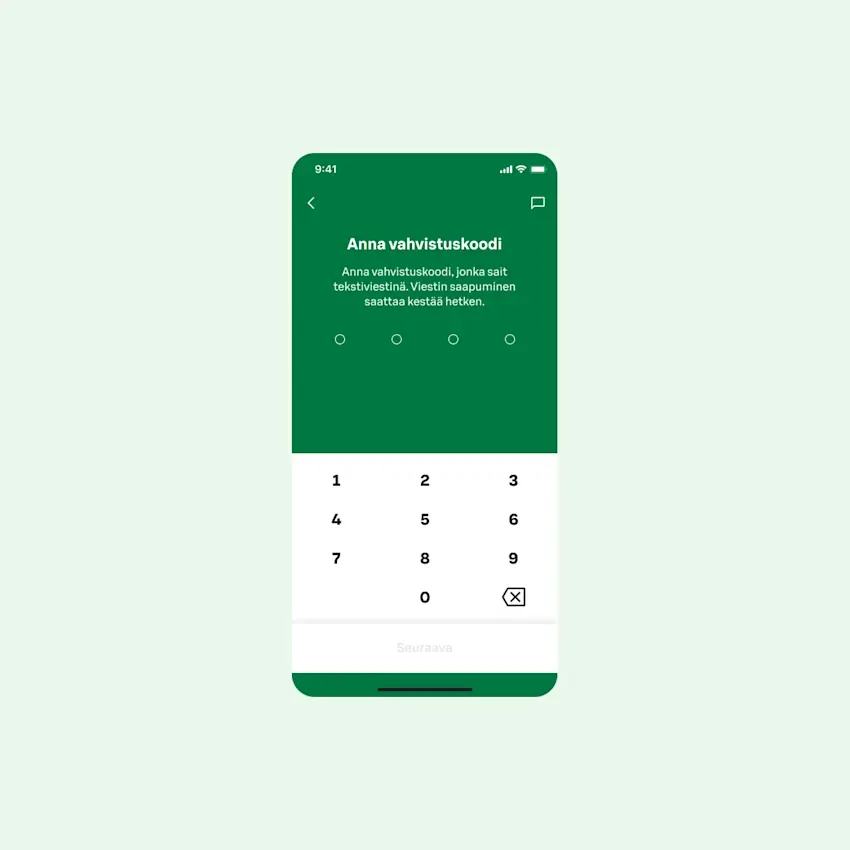
Enter the confirmation code
- Enter the verification code you received by text message.
- Tap "Next".
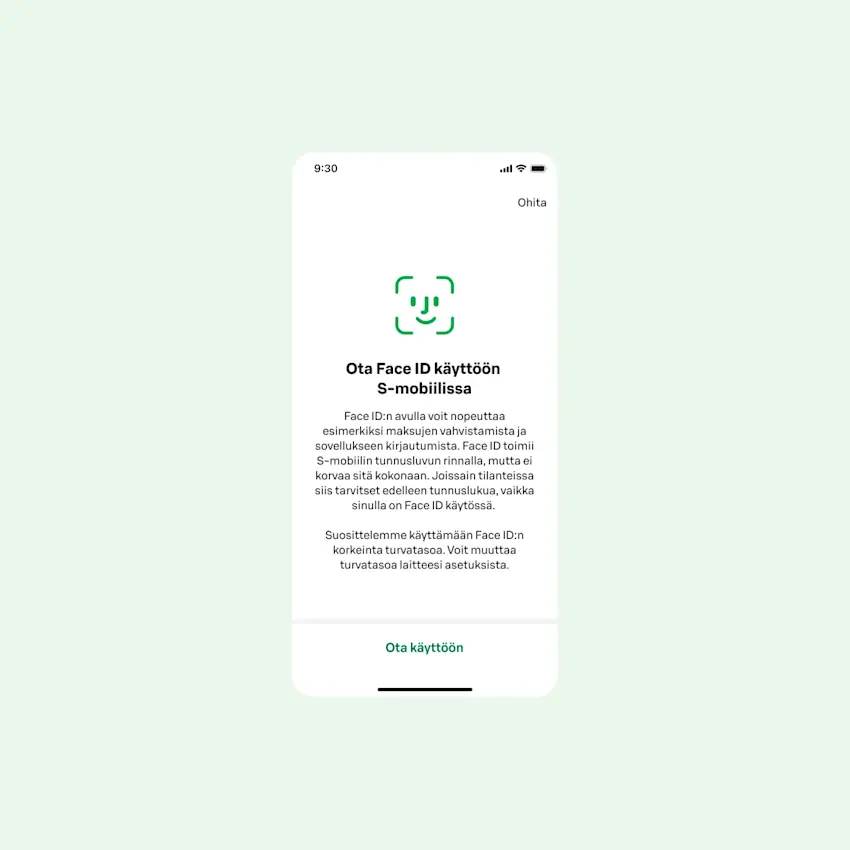
Enable fingerprint or face recognition
- Here you can activate fingerprint or facial recognition.
- Tap "Enable" or "Skip".
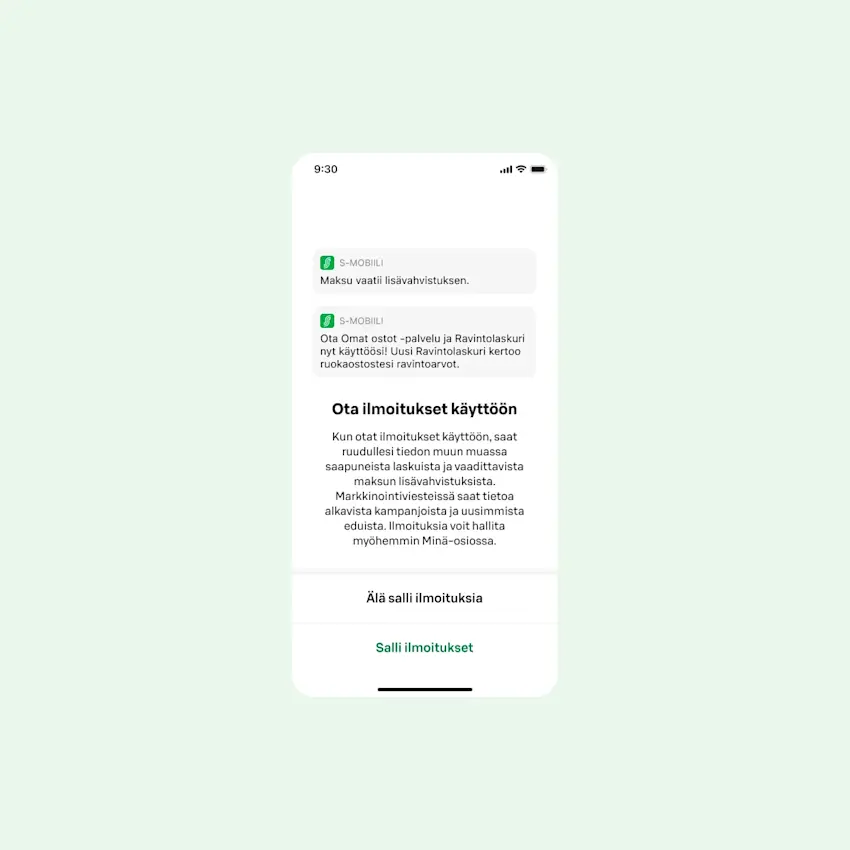
Allow notifications
- S-mobiili can send you notifications about new coupons or announcements.
- Choose whether you want to receive notifications.
- Tap "Allow notifications" or "Don't allow notifications".
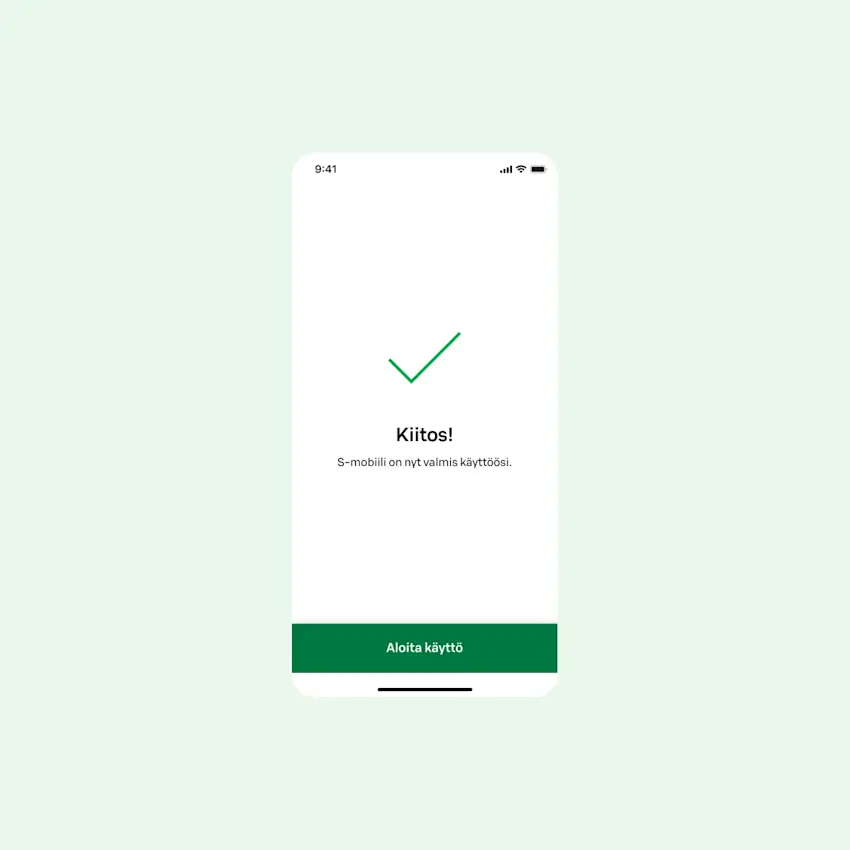
Complete the setup
- Tap "Start using".
- You can choose your preferred language (Finnish/Swedish/English) in the app's "Me" section.